How To Create Durga Pujo Ai Photo Using Chat Gpt – You may have witnessed people engrossed in the ‘Sindoor Khela. Ritual smearing vermilion in front of or beside the idol during a past Durga Puja. Perhaps, for some reason, you were unable to capture a photograph of the moment yourself. I have noticed that taking good photos amidst the crowds at a Puja pandal is often quite challenging. However, if you wish to have a picture of yourself participating in Sindoor Khela inside a pandal during the 2026. Durga Puja, it is certainly possible. But what if, for some reason, you miss the chance to take that photo then as well?
How would it be if I created an image for you showing you participating in Sindoor Khela with the idol at a Durga Puja pandal? You wouldn’t even need to visit a pandal you could generate this Durga Puja image right from the comfort of your home. Many of you might be wondering how this is possible. If you want to find out how, you need to read this article from start to finish.
How To Create Durga Pujo Ai Photo Using Chat Gpt
Many of you have likely seen the trend on Instagram. Where people create AI-generated photos using ChatGPT, which often go viral. Nowadays, if you create and post AI-generated photos on Instagram. There is a high chance they will go viral. You might be wondering why I am talking about AI—it is because I am going to teach you how to create a Durga Puja photo using AI. Think about it: when you visit a pandal to take photos, it is often so crowded that finding a good spot is difficult. You also face issues like people walking into the frame, blocking you from view. However, if you use AI, you can generate a high-definition (HD) photo showing you playing *sindoor khela* with the idol inside the Puja pandal. The result will look as if it were taken with a professional-grade camera.
To create this kind of image, you need to use a specific Durga Puja prompt. I will explain exactly how to write a prompt for Durga Puja. And how to use it to generate the photo—I’ll cover all the details.
Best Way To Create Durga Puja AI Prompt ?
Writing PROMPTs is not too difficult if you follow the correct procedure, you can create any photo prompt. To create a photo prompt we will know how to write a photo prompt for Durga Pujo through some steps
1. Set the Scene :- Before you start you need to decide what kind of photo you want to make? Do you want to make a photo standing in front of the idol or do you want to make an omen photo with the idol playing Sidhur? If you get this right, it will be much easier for you to make prompts.
2. Write about the dress:- Most of the girls fall in line at the Pujo pandal. But you don’t just have to write lines on Promote. You have to say in such a way that which row will read like saree, or red banarsi think about it first and then write it on the prompt.
3. Facial expression and how to dress:- How do we put the face on the photo floor? Many people like to smile and take photos. You can add that slight smile as it becomes a facial expression. Now those who dress up for Puja give tip on the forehead, touch of vermilion, kajal on the eyes, so you have to write in the prompt the way you want to dress up.
4. Describe the environment :- It is very important to write a description of the environment in the prompt. Otherwise, it will not look good if you generate the photo with some other environment instead of generating it at the pooja pandal. Whatever is in the pujo pandel should be written such as mandap light, garland of flowers, people passing by or you can also write pujo pandel.
5. Camera angle :- Now this is the last camera angel. You want to take the photo from the side, from above, from the back. You can write the way you want to take the photo.
If you follow these 5 ways, you can write a promo for any photo. I gave an example of how to write a prompt.
What Is Needed To Generate Durga Puja Ai Photo ?
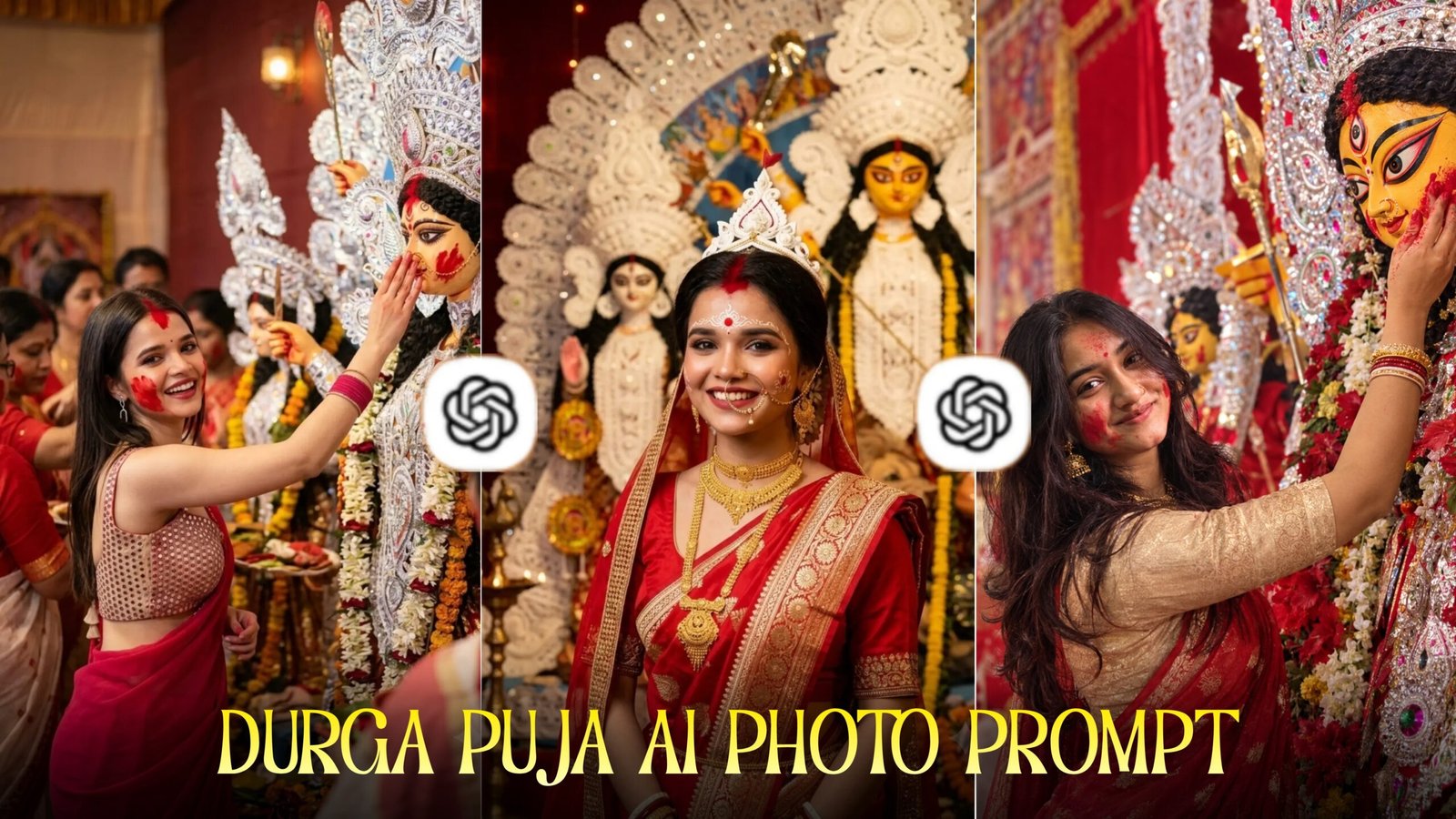
If you simply ask an AI to “create a Durga Puja photo” without specific details, it won’t generate the perfect image. To achieve results identical to the one shown in the thumbnail, you need to use specific elements. Here is what you will need to generate the photo
1. An AI image generation tool: You can find many AI generation tools on Google, but you need a high-quality one to create realistic images. The tool I used to generate the photo is ChatGPT; you can access it directly by clicking the link below.
2. Durga Puja Prompt:- When you provide a photo to ChatGPT along with a prompt. It will generate an image based on that prompt. It will create an image exactly according to the Durga Puja-themed prompt you write. I have previously provided a step-by-step guide on how to write prompts for Durga Puja. However, if you still don’t know how to write one. I will provide you with a Durga Puja prompt. Simply use that prompt in ChatGPT, and it will generate an image just like mine.
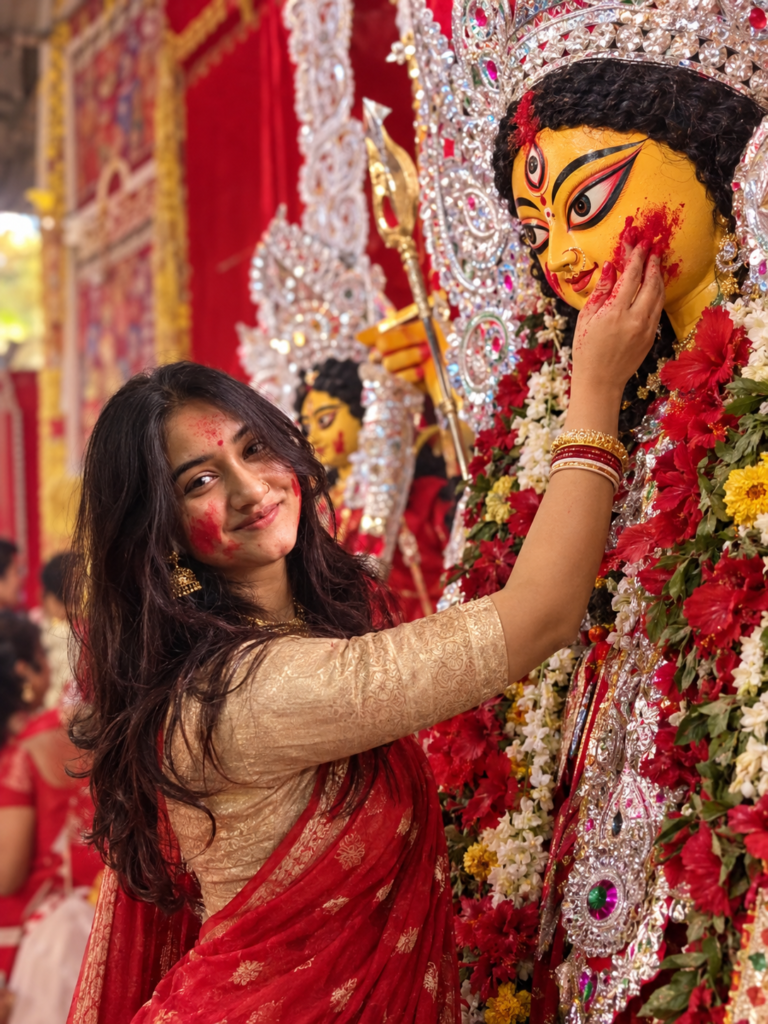
Use Reference Image

A candid, high-quality portrait of
a beautiful Bengali woman applying
red sindoor to the face of a
grand Goddess Durga idol during
Sindoor Khela. The woman is
wearing a elegant red saree with
a beige/gold blouse and golden
jewelry. Her cheeks are covered
in red vermilion powder. She is
reaching up with her hand to
touch the cheek of the ornate
Durga idol adorned with floral
garlands and silver foil
(daaker saaj) decorations.
Authentic festival atmosphere,
sharp details, candid emotion,
vivid colors, photographic
rendering
Learn How To Use Durga Puja Photo Using Chat Gpt?
For the Durga Puja photo generation, ensure the photo clearly shows your face. Take a photo where the lighting on your face and body is good so that you appear clearly in the image. Once the photo is ready, copy the prompt you intend to use. Now, download an AI photo generation tool from the Play Store or use one via the Chrome browser. If you want to create the photo using ChatGPT, follow these steps:
1. Open ChatGPT and look for the plus (+) button at the bottom; click on it. You will see options for ‘Document’ and ‘Photo’—select the ‘Photo’ option.
2. Your gallery will open; select the photo you prepared and click the ‘Next’ button.
3. You will now need the prompt you copied earlier. Paste that prompt into the input box provided at the bottom.
4. Double-check everything—ensure the photo and prompt are correct—and then click the ‘Send’ button.
After clicking send, your Durga Puja photo will be generated. Those unfamiliar with AI might have thought generating such a photo would be difficult, but as you can see, I easily created it by following just four simple steps.
Overall
If you don’t want to make a photo in this style and you like this photo in another style, then create a prompt yourself for this, don’t use the prompt I gave you. And if you want to make photos for this pooja in another style, conatomize my prompt, you can change the game of Sidhu and write something else there. Now you will find many ai photo genret tools that can be used to generate photos. But the problem is that not all Ai Tools are the same, none of the tools are more power full, and some are not more power full.
I suggest chat gpt to you because it is a very powerful Ai a photo Genret Tools chat gpt you can generate photos in realistic and high quality. There are few days left for the puja, so make a photo for the puja and share it on your social media.