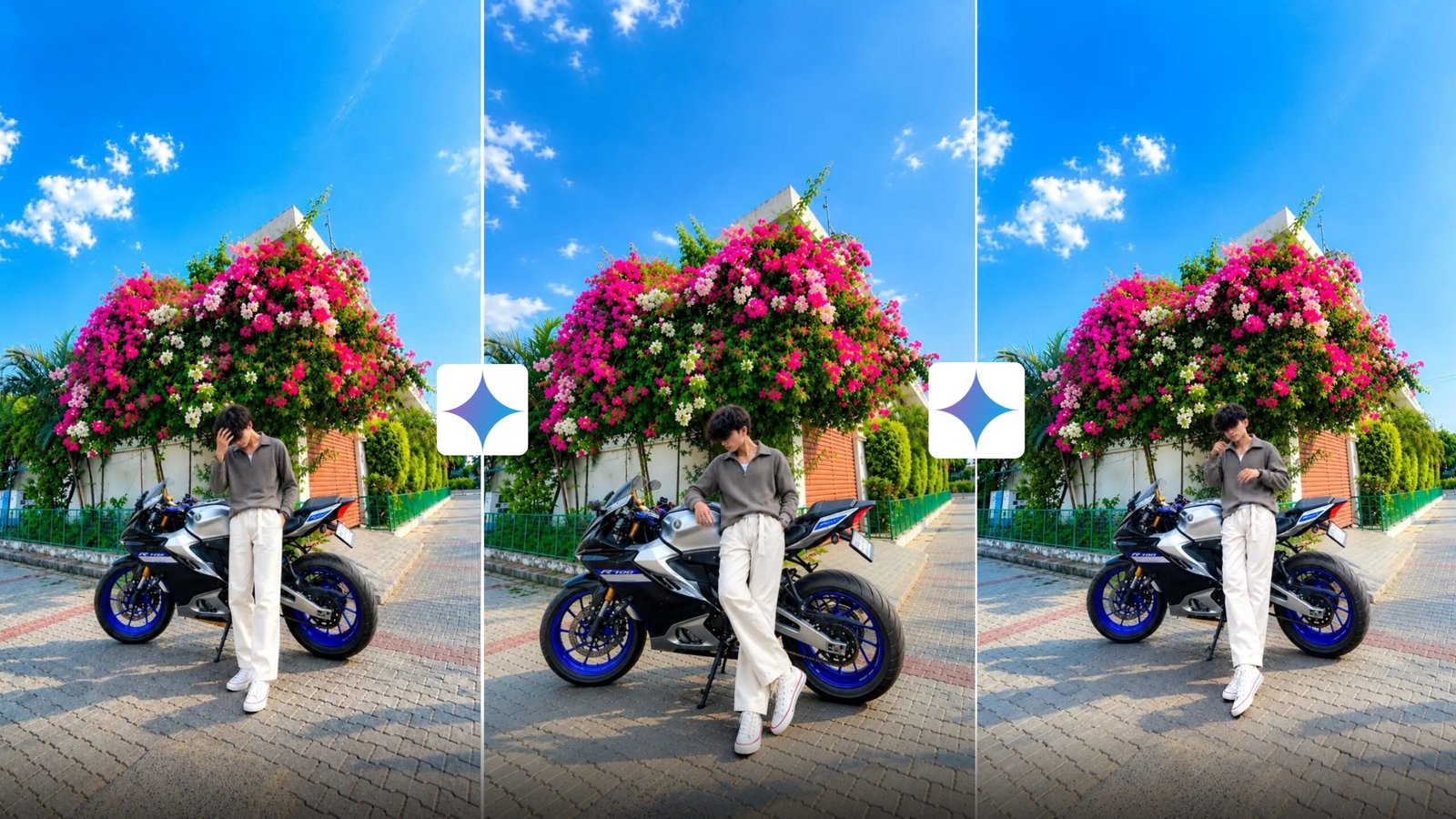
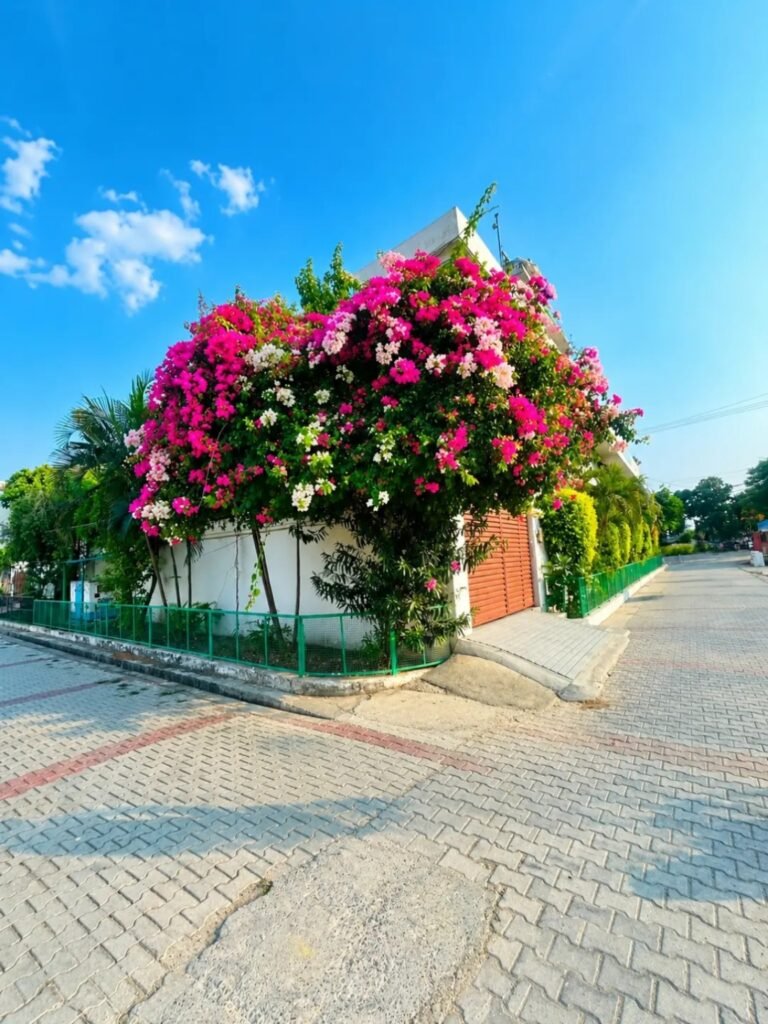
Vibrant Flowers Road Street AI Photo Prompt-I was riding my bike down the road today when I spotted a house with beautiful flowers growing along the wall. Seeing them, I thought about how wonderful it would be to have such a plant at my own home. I asked a friend to take a picture of me there. I was delighted with the result; I also decided to snap a photo of the flowers themselves. Later, I tried using AI to create a new image by combining the photo of the flowers with a picture of myself, instructing the AI to place me into the scene. It successfully integrated me into the image. I was amazed by the result—it looked so realistic that one couldn’t even tell it was AI-generated. I decided to share this with you all. Today, we’ll explore how to generate such an image using AI. If you’d like to create photos like this, be sure to read on.
Vibrant Flowers Road Street AI Photo Prompt
First, take a look at my photo; I am standing with a bike, which is what makes the image look so beautiful. The credit for this doesn’t go to me, but rather to the setting in the background. If you look at the photo, you will understand better: I am standing with a bike, and behind me, there is a wall adorned with various red and pink flowers. Roads are visible on either side of the wall, and I am positioned right in the middle. You can view the photo to get a clearer idea. You might be wondering if I am going to share the location of this house so you can recreate the shot. Well, I won’t be giving you the location; instead, I will teach you how to use AI to create a “Vibrant Flowers Road Street” photo using just one of your own pictures.
What kind of photos should you upload to get good results?
I have often tried creating photos using AI, but the generated images didn’t quite match the uploaded reference photo perfectly. I tried changing the prompts repeatedly, but nothing seemed to work. Eventually, I found a solution to the problem. Can you guess what the issue was? Let me know in the comments. The problem lay in the photo I had originally uploaded. No matter how well I crafted the prompt, the AI couldn’t quite grasp what I wanted because the uploaded image only showed my face rather than my full body, making it difficult for the AI to interpret the details. If your initial attempt fails, you need to upload a photo that better reflects the pose or style you are aiming to create. For instance, if I try to generate a specific image but upload a selfie, the AI won’t be able to produce a good result. However, if I upload a full-body shot—perhaps wearing a nice outfit and posing with a bike—the AI can easily understand what the bike and I look like. If you upload photos this way, you won’t face any issues generating the images you want.
What Need To Genret Vibrant Flowers Road Street AI Photo ?
You might be wondering what is required to create the “Vibrant Flowers Road Street” AI photo. You will need just a few things to easily create this image with the help of AI:
- Your Photo
First, prepare a photo of yourself. Make sure it is high-quality (HD). Let me explain the type of photo you need: ask a friend to take a picture of you. You can pose with a bike or a car, or simply stand alone. Wear casual clothing and ensure the photo captures you from head to toe.
- AI Photo Generation Tool
By “photo generation tool,” I mean the software used to create the image. To give you a simple example: if you upload your photo to an AI tool along with a specific prompt, the AI will generate a new image based on your instructions. We will use **Google Gemini** for this; it is an AI tool available on both Google and the Play Store.
- Photo Prompt
As I mentioned earlier, the prompt you provide alongside your photo is crucial. If you simply upload the reference photo to Google Gemini and ask it to “add me to this photo,” the result likely won’t meet your expectations—the AI might place you awkwardly, resize you incorrectly, or fail to match your face properly. However, using a perfect prompt—one that specifies exactly where to place you, ensures the face matches, and defines the positioning—will solve these issues. I will provide a prompt that covers all these details; you simply need to copy and use it. Scroll down to get the prompt.
Face and outfit don't change.
ultrawide upper-angle low-angle shot
Add this boy and the bike r15 white
and blue Colour with him to this background
by adjusting it
little behind Increase quality
(RATIO 3:4)
How To Genaret Vibrant Flowers Road Street AI Photo Using Google Gemini?
Have you prepared everything I mentioned was needed to generate the photo? If everything is ready, you are all set to generate the image. First, download the photo I provided: press and hold the image, then click the download button to save the “Vibrant Flowers Road Street” photo. Now, let’s see how to create the image using Google Gemini AI.
- First, open the app and create an account by clicking on the logo in the corner. You will need a Gmail account and a phone number to create the account.
- Next, click on the plus (+) option, look for the photo icon, click on it, and open your gallery. You need to upload the photo; make sure to add the specific type of photo I recommended.
- Then, you need to enter a prompt. If you don’t have experience writing prompts, don’t try to write one yourself; simply copy and paste the prompt I provided.
- After completing these steps, the final stage is generation. Look for the “Generate” button near the area where you entered the prompt and click it. You will then see the image being generated in the display box.
- Once the photo is generated, open it and click the “Save” button to save it to your gallery.
Overall
After generating the photo, if you want to enhance it further, try applying some color grading using the Lightroom app; it will make the image look even better. Did you understand how to generate the photo based on my article? I hope the steps were clear—I broke down the editing process into numbered steps (1, 2, 3, 4) to make it easy for you to follow. So, don’t wait any longer—give it a try right now using my prompt. Once you’ve generated the photo, please let me know in the comments how it turned out. Reading your comments motivates me to write more articles.